

/image%2F0881799%2F20150718%2Fob_bae49d_980x285-ct.jpg)
[SCCM] [INTUNE] How to Deploy an iOS Application with Intune and SCCM
Step 1 | Create the Application in SCCM
Creating a mobile application is in the same node as standard applications.
- Open the SCCM Console and navigate to Software Library / Application Management / Applications
- Right click on Applications and select Create Application

- From the General section, choose App Package for iOS from App Store as the type of your application
- Fill the Location field with the web link provided on the Itunes App Store for Microsoft Word
- https://itunes.apple.com/ca/app/microsoft-word/id586447913?mt=8
- Make sure you have the link based on your region

- Click Next

- Application successfully imported, click Next

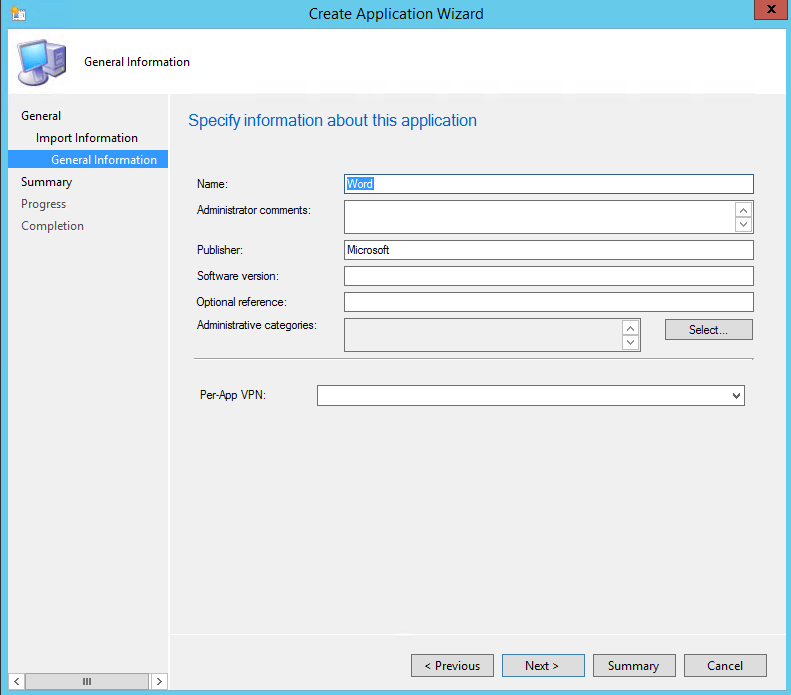
- In the General Information section, type Word in the Name textbox and type Microsoft as the Publisher
- In our example, we don’t specify all the information, but you can use them based on your needs
- Click Next
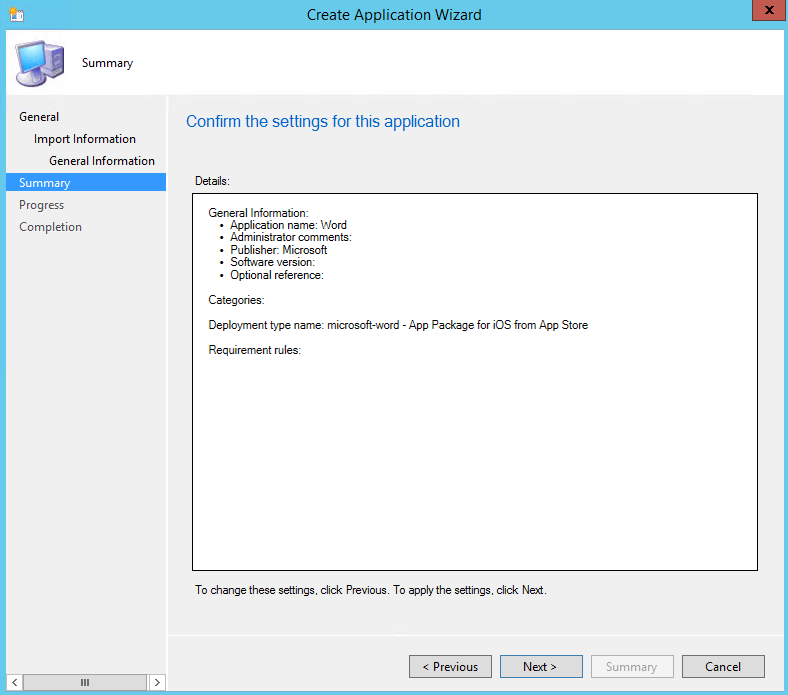
- In the Summary section, confirm your settings and click Next
- Wizard completed successfully, click on Close

We have not finish yet to configure the application, we will modify few things in the default deployment type like the name and requirements.
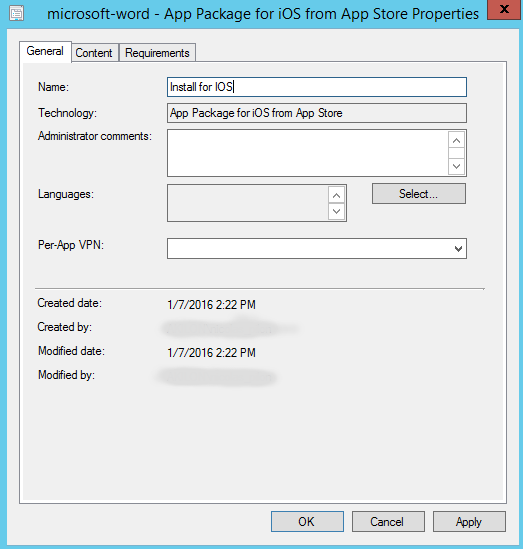
- Click on Word application and right click on the deployment type microsoft-word – App Package for iOS from App Store
- Select Properties

- On the General tab, change the name with Install for iOS and click Apply
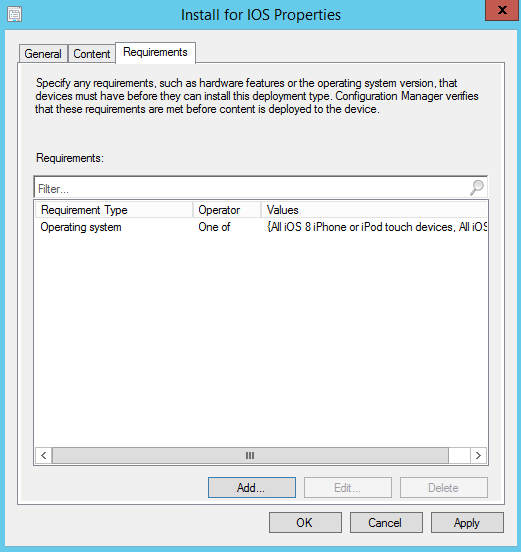
Since Microsoft Word for iOS is designed for iOS 8 and later, we will need to add requirements based on the operating system. In some case, you will need to create one deployment type for IPad only and one for IPhone only. In our case, Microsoft Word is design for both platforms.
- Select Requirements tab and click on Add

- In the Create Requirement window, select Operating System as condition
- Select all iOS 8 and later and click Ok

- Click Ok
Step 2 | Configure an Application Management Policies
Before deploying Microsoft Word, we must create an application management policies because you will get this error message during the deployment wizard.

- To create a MAM policy, navigate to Software Library / Application Management / Application Management Policies
- Right click on Application Management Policies and select Create Application Management Policy

- In the General section, fill the Name textbox with Microsoft Office and click Next
- This policy can be used for the Office suite

- Keep Policy Type section as default and click Next

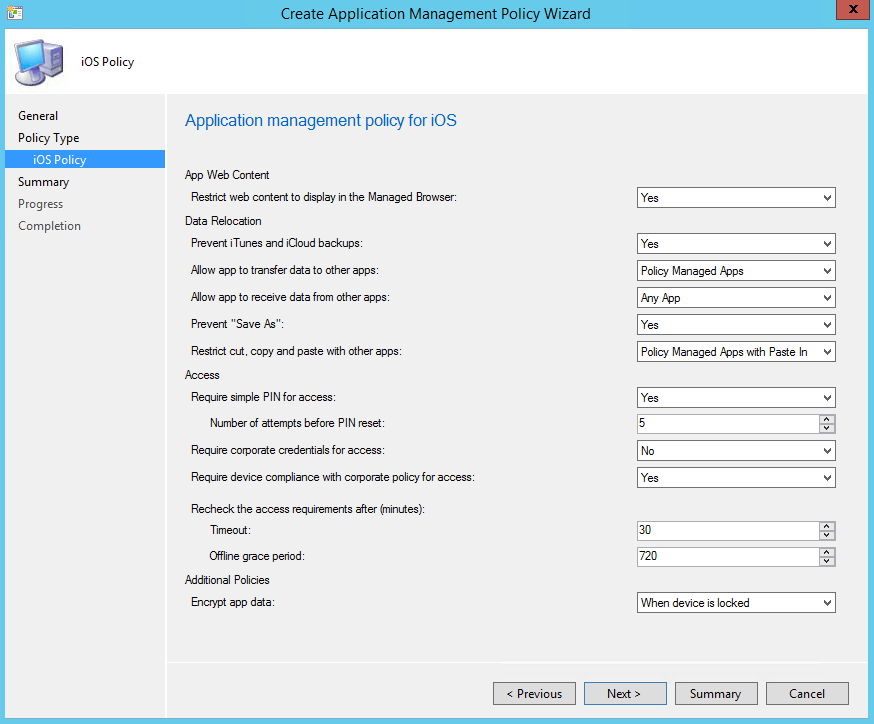
- In the iOS Policy section, configure policies based on your needs, in our example we keep default configuration
- Click Next
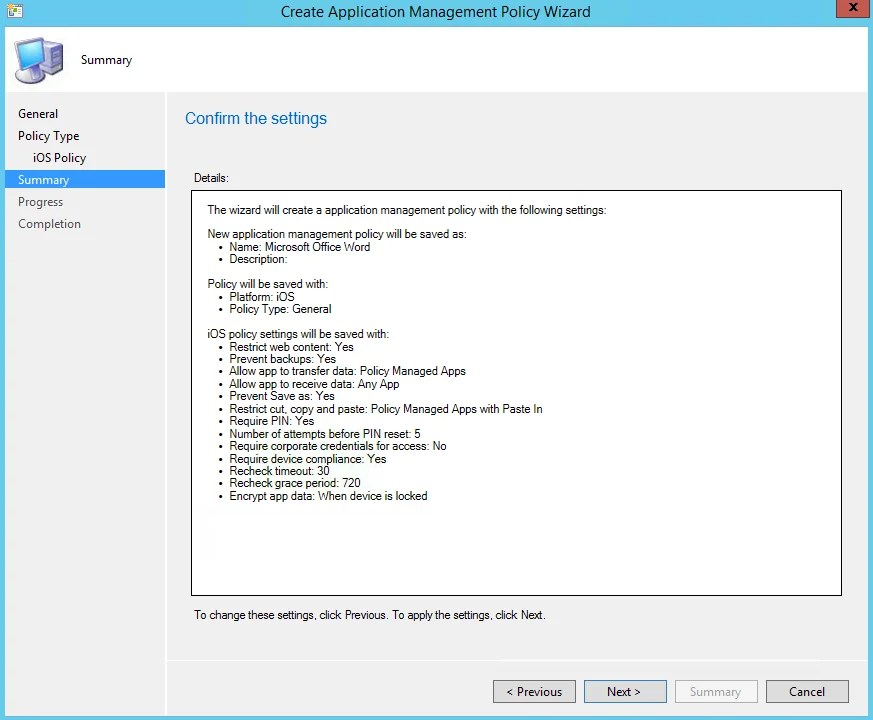
- Make sure your settings are ok and click Next
- Application management policy completed successfully, click Close

You are now ready to deploy Microsoft Word on IOS devices.
Step 3 | Deploy the Application
Deploying mobile applications with Microsoft SCCM and Intune is advertised the same way as standard applications, required or available. Required deployment automatically install Microsoft Word as soon devices are enroll or will be enrolled. Available deployment publish the application in the company portal and users can install manually.
In our post, we will publish Microsoft Word in the Company Portal for users that have access to enroll their devices.
- From the console, navigate to Software Library / Application Management / Applications
- Right click on the application Word and select Deploy

- Choose the users collection that have access to enroll their devices by clicking on Browse
- Click Next
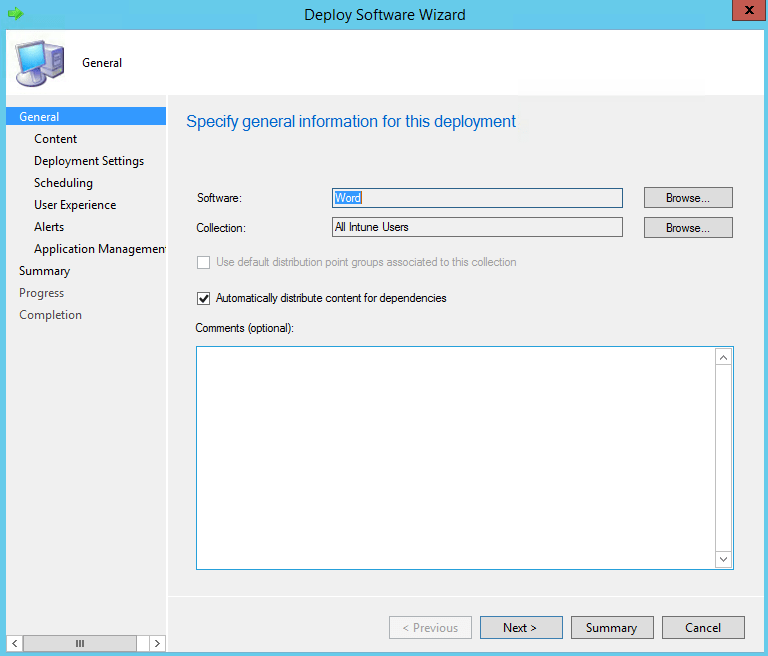
- Leave as default and click Next
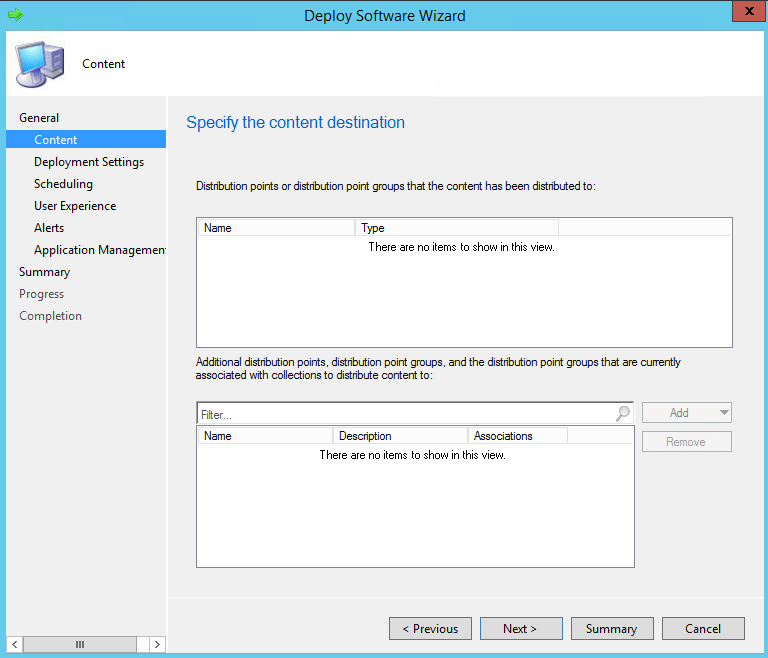
- Make sure the Purpose is Available
- Click Next

- We will deploy right now, so leave it by default and click Next

- Leave as default and click Next

- Leave as default and click Next

- In the Application Management section, choose Microsoft Office as General Policy and click Next

- Verify your settings and click Next

- Deployment Software Wizard completed successfully, click Close
Step 4 | Installing the application from Company Portal
The application deployment is configured, your devices are enrolled, it’s not time to take your IOS device and install Microsoft Word. Finally!
- From your iOS device, open and log into your Company Portal
- If you don’t have it, install from App Store
- Click on the big box Company Apps

- The application Microsoft Office Word is publish and ready to install. Click on the application and Install

There you go, ready to use Microsoft Word on your iOS devices.
Extra!
To uninstall managed applications on device when an employee leaves the company, do a selective wipe on the device from the console, it will automatically uninstall applications managed by Microsoft Intune on the device
/image%2F0881799%2F20140610%2Fob_a8c7fe_logo2.jpg)
Commenter cet article