

/image%2F0881799%2F20150718%2Fob_bae49d_980x285-ct.jpg)
[SCCM] [INTUNE] Compliance Settings for Mobile Devices in SCCM
Create Configuration Items
The first step is to create a Configuration Item (CI) that will block the Application Store.
- Open your SCCM Console
- Go to Assets and Compliance / Overview / Compliance Settings / Configuration Items
- Right-Click Configuration Item and select Create Configuration Items

- Name your CI and select Mobile device in the Specify the type of configuration item that you want to create dropbox, then click Next

- From the Mobile device setting groups select Store, click Next

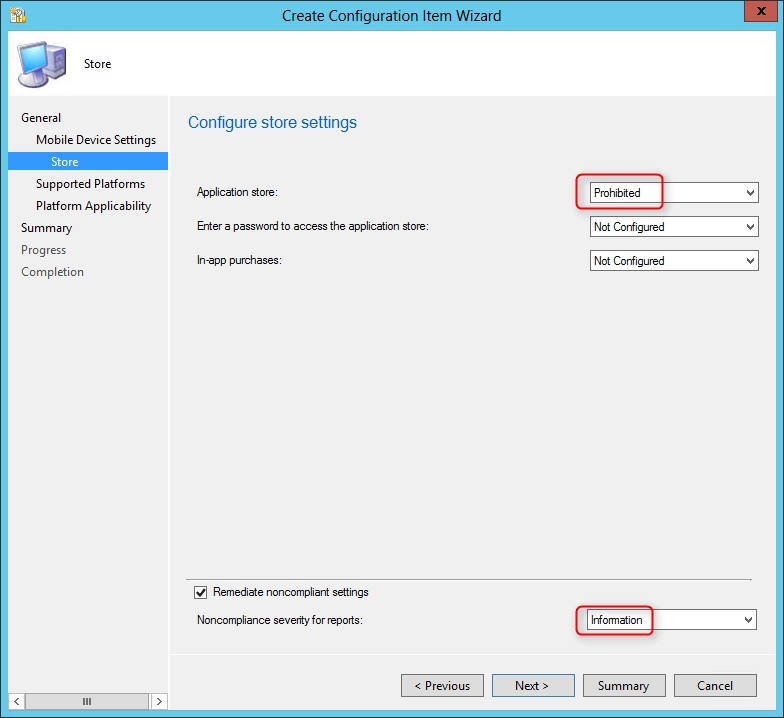
- In the Application Store dropbox, select Prohibited and click Next
- Specify that you want to apply the CI on Windows Phone
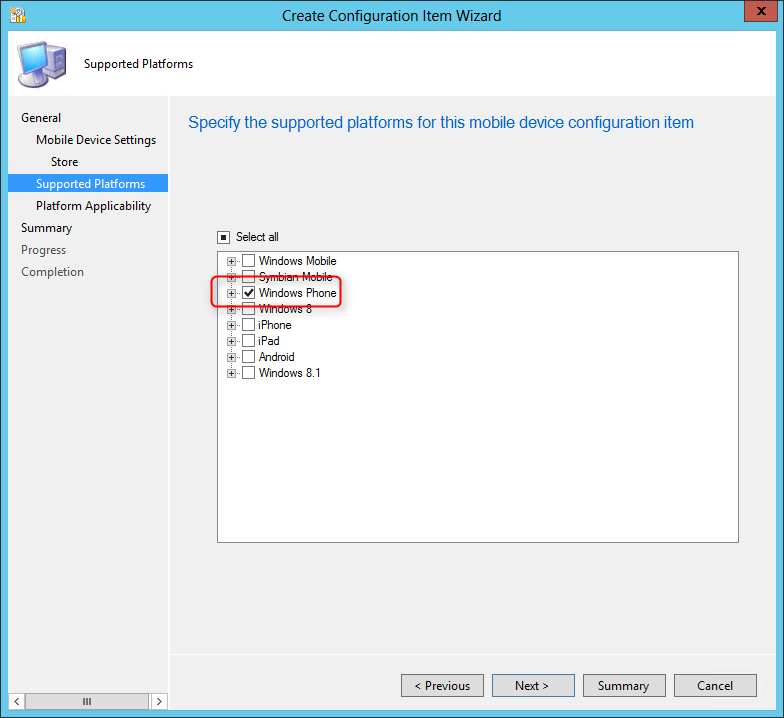
- Review the platform exclusion. In this example the wizard is warning us that my CI is unsupported on Windows Phone 8.0. I’m using a Windows Phone 8.1 so we’re good to proceed. See the link provided at the beginning of the post to view all supported CI.
- Click Next

- Review the CI wizard and click Next
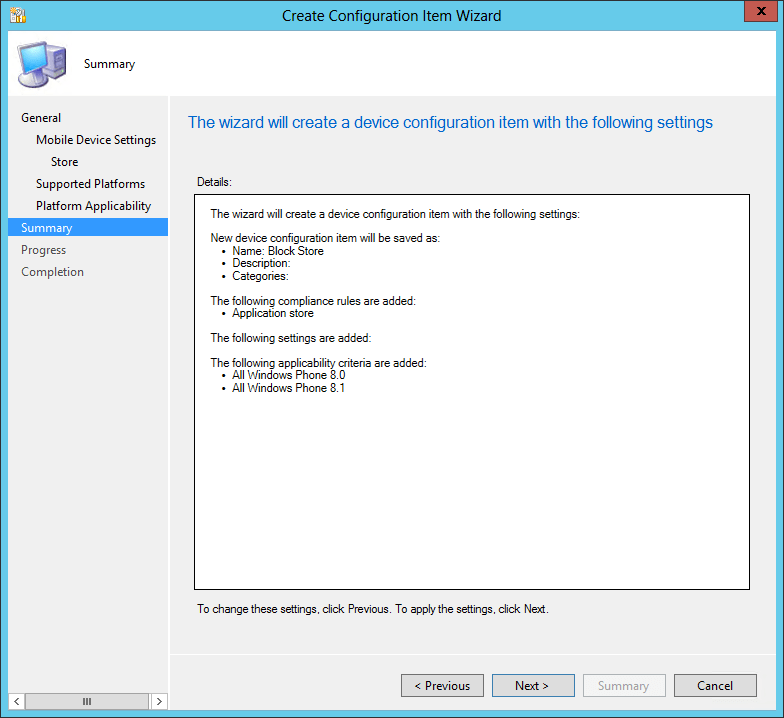
- Wait for the process to complete

- Click Close once it’s finished

Create Configuration Baseline
Once our CI is created we must add it to a Configuration Baseline before we can deploy it to our users.
- Open your SCCM Console
- Go to Assets and Compliance / Overview / Compliance Settings / Configuration Baselines
- Right-Click Configuration Baselines and select Create Configuration Baseline

- Name you Configuration Baseline and click Add / Configuration Items

- Select your CI that you created in the previous step and click Add
- The CI will appear in the bottom window
- Click OK
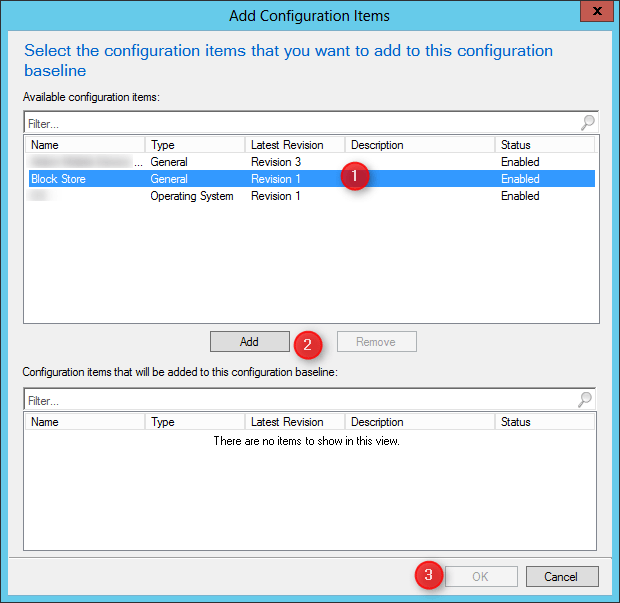
- Confirm that you CI has been added and click OK

- Everything is created, we must now deploy the Baseline to our users
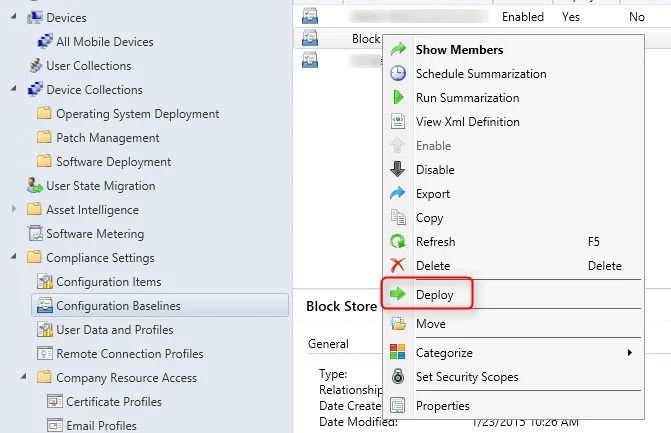
- Right-click the Baseline you just created and select Deploy
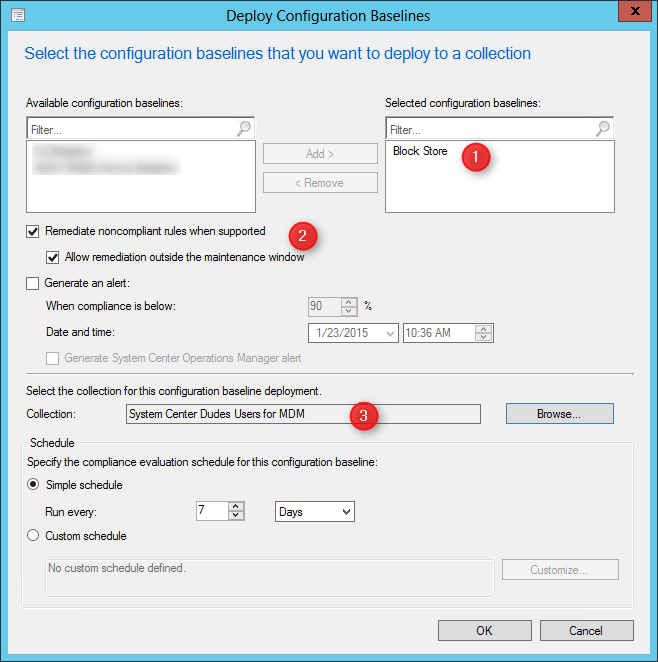
- Your baseline will appear on the right. You could add more CI to the same Baseline if needed
- Check the Remediate noncompliant rules when supported and Allow remediation outside the maintenance window. If you do not select this check box, the remediation will wait for the next maintenance window before applying the settings.
- Select the collection on which you want to apply the Baseline
- Click OK
Initiate compliance check on device
Before the Baseline can be applied on the device, it must check for compliance. We’ll force a compliance check on the device.
- Take your Windows Phone and open the Company Portal App
- Swipe to the left and select your device

- Select the 3 little dots on the bottom right
- Select Check Compliance

- Wait for the compliance check to complete

- Done

Verify
Now that the compliance check has been made, we’ll verify that our Store is locked.
On the device
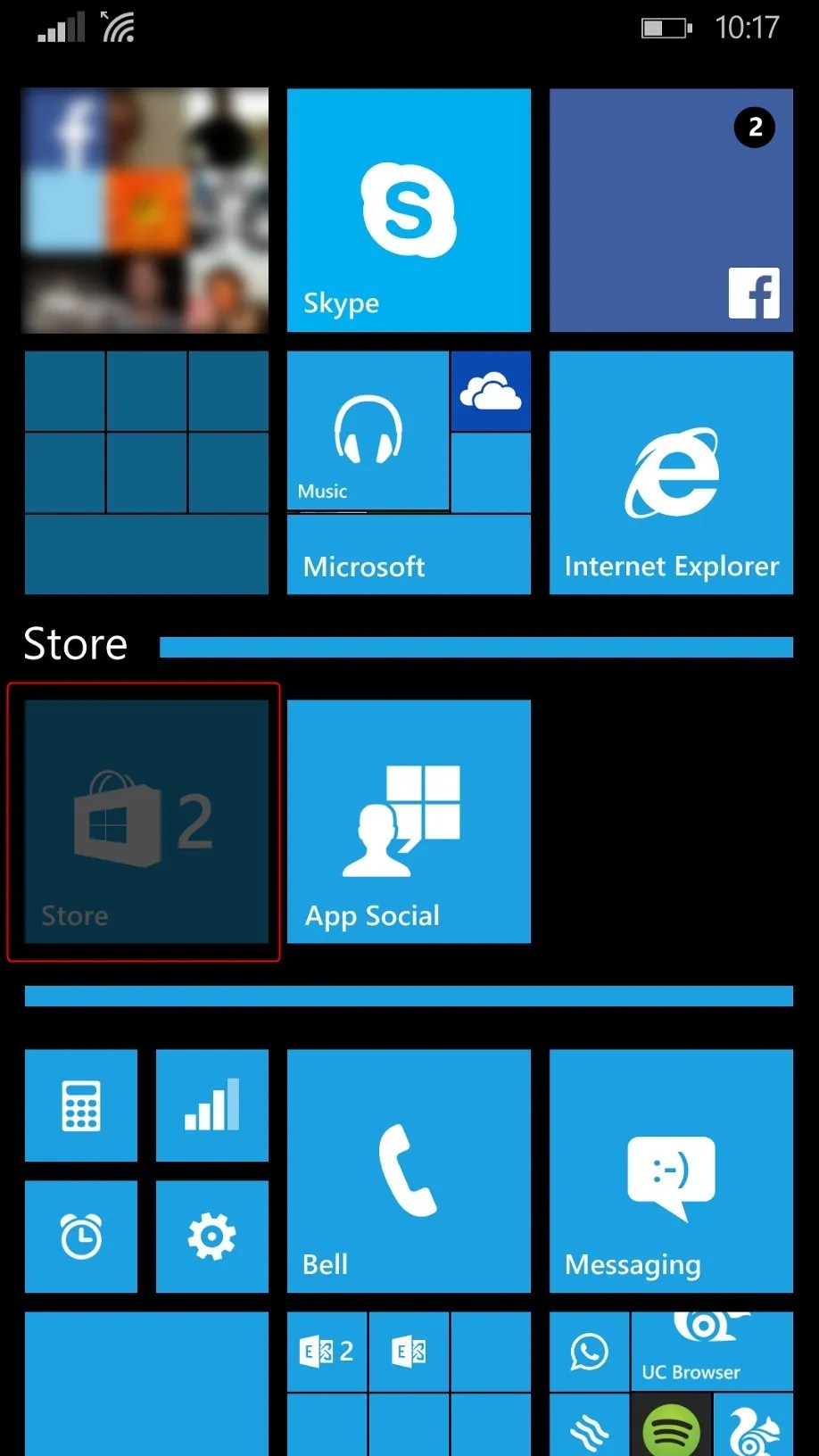
- Find the Store tile
- The tile is grayed out, good job !
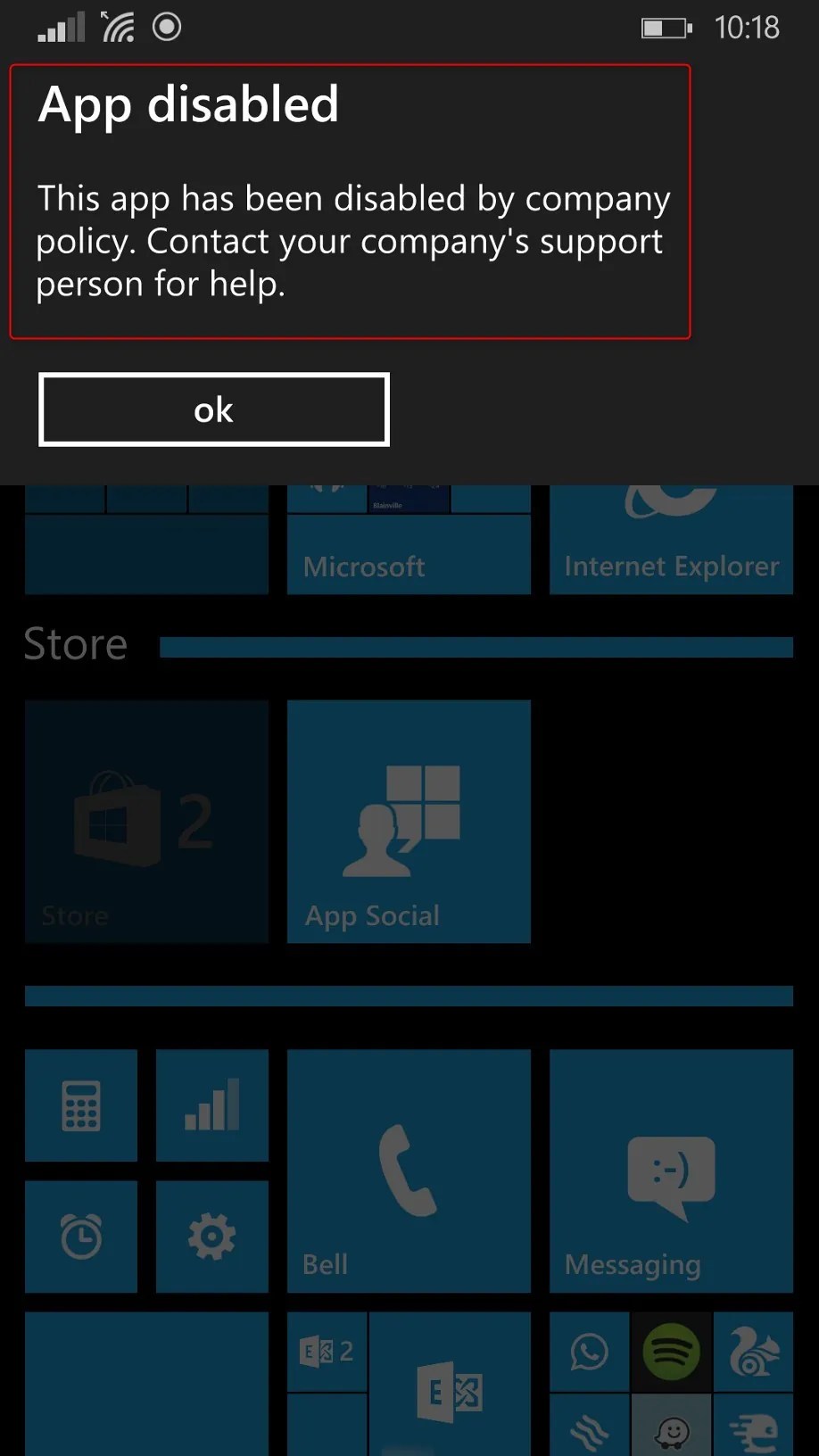
- If you try to open it, the App disabled notification appears
In the SCCM Console
- Open the SCCM Console
- Go to Assets and Compliance / Overview / Compliance Settings / Configuration Baseline
- You can see the compliance count

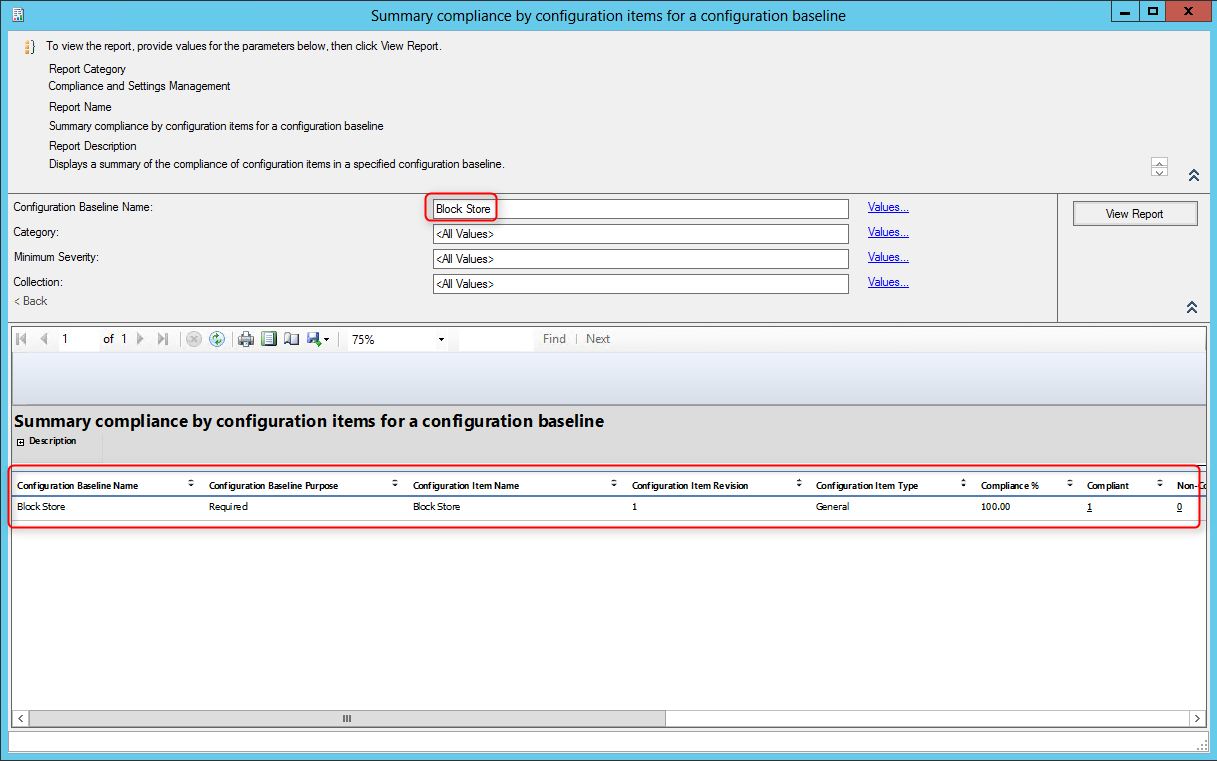
- Go to Monitoring / Overview / Reporting / Reports / Compliance and Settings Management
- You can run reports to see your compliance status
Troubleshooting
It’s a bit complicated to troubleshoot compliance setting on mobile device. Unlike on a Windows computer, you can’t get information from the log files (DCMAgent.log and CIAgent.log), on mobile device you don’t have any logs for that. The only information that you have is if your device is compliant or not.
I would recommend to create many simple Configuration Items and test them as you roll them out.
You’re done ! Experiment with other Configuration Items. This is the key to success before implementing a BYOD company policy.
/image%2F0881799%2F20140610%2Fob_a8c7fe_logo2.jpg)
Commenter cet article