

/image%2F0881799%2F20150718%2Fob_bae49d_980x285-ct.jpg)
[SCCM] [INTUNE] Understanding Devices Ownership and Wipe option in SCCM 2012
Device Ownership
All enrolled mobile devices can be assigned as Company or Personal devices in the SCCM console.
What’s the difference between both ?
- Company devices means that it’s owned by the company. When doing inventory, they will report all hardware and software information about the device.
- Personal devices means that it’s owned by the employee. When doing inventory, they will report only software installed by the Company (using SCCM)
All devices are assigned as Personal by default at enrollment time.
You can set the device ownership via the SCCM Console
- Go to Assets and Compliance / Overview / Devices
- Open your Mobile Devices collection
- Right-click your device (you can multi-select if you need to change more than one at a time)

- Select Change Ownership

- Select Company in the drop down, click OK

You can use Global Condition to target the Device Ownership attribute in order to deploy settings/software to your devices. The Ownership Global Condition is created by default.

Bonus tip : Using the Set-CMDeviceOwnership Powershell cmdlet, you can script the device ownership.
Retire / Wipe
SCCM 2012 R2 offers two options to wipe a device: A Full Wipe and a Selective Wipe.
Full Wipe
If a user report that his device has been stolen, a Full Wipe is usually recommended. This option allows IT administrator to completely reset a mobile device to factory default. All personal data on the device is deleted including : photos, videos, emails and applications. I recommend to have the users consent before initiating this action.
To initiate a Full Wipe from the Configuration Manager console :
- Go to Assets and Compliance / Overview / Devices
- Open your Mobile Devices collection
- Right-click your device
- Select Retire / Wipe

- Select the second option Wipe the mobile device and retire it from Configuration Manager

- A confirmation screen will show, click YES

The Full Wipe option is available on most mobile operating system platforms. If a specific platform does not support full wipe, the option will be unavailable in the SCCM console.
Selective Wipe
If a user leaves your organization, a Full Wipe can be an intrusive operation because all the personal data on the device is deleted. SCCM 2012 R2 now support a Selective Wipe which deletes only corporate data and applications that are deployed by using SCCM. All photos, videos and other personal data are left intact.
To initiate a Selective Wipe from the Configuration Manager console :
- Go to Assets and Compliance / Overview / Devices
- Open your Mobile Device collection
- Right-click your device
- Select Retire / Wipe
- Select the first option Wipe company content and retire the mobile device from Configuration Manager
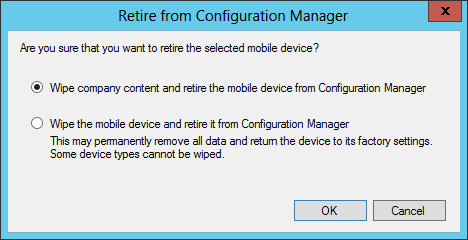
- A confirmation screen will show, click YES
What does Selective Wipe deletes on the device ? It depends of the mobile operating system platform. The following table provides a description of Selective Wipe operations on each of the mobile operating system.

Addi
/image%2F0881799%2F20140610%2Fob_a8c7fe_logo2.jpg)
Commenter cet article