

/image%2F0881799%2F20150718%2Fob_bae49d_980x285-ct.jpg)
[SCCM] [Windows 10] In-place upgrade to Windows 10 Enterprise with SCCM
Launch the ConfigMgr Console, click on Software Library, click on Overview and expand Operating Systems. Right click Operating System Upgrade Packages and click on Add Operating System Upgrade Package.

Provide the path where the Windows 10 source files are present. Click Next.

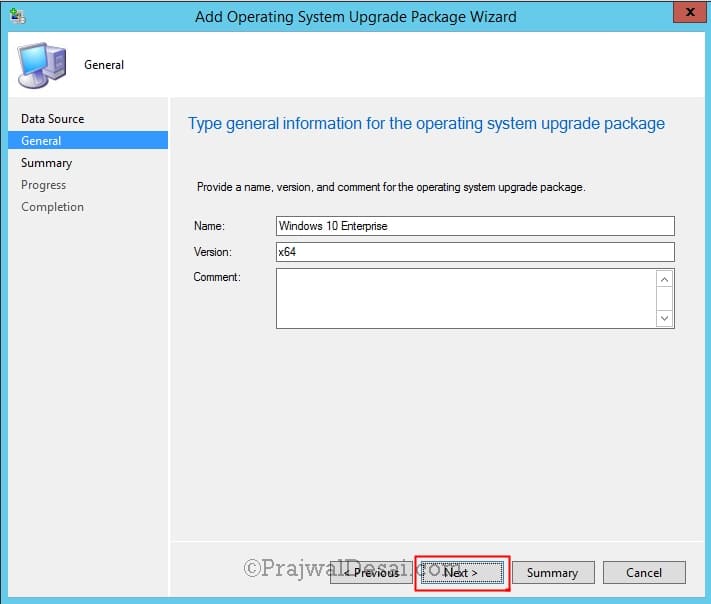
Provide some information about this upgrade package. Click Next.
Important – The next step is to distribute the content to the distribution point. Right click on the Windows 10 enterprise package and click Distribute content. Choose the DP’s and distribute the content. Once the content is available with DP, proceed to the next step.
Choose Upgrade an operating system from upgrade package. Click Next.
Create Task Sequence
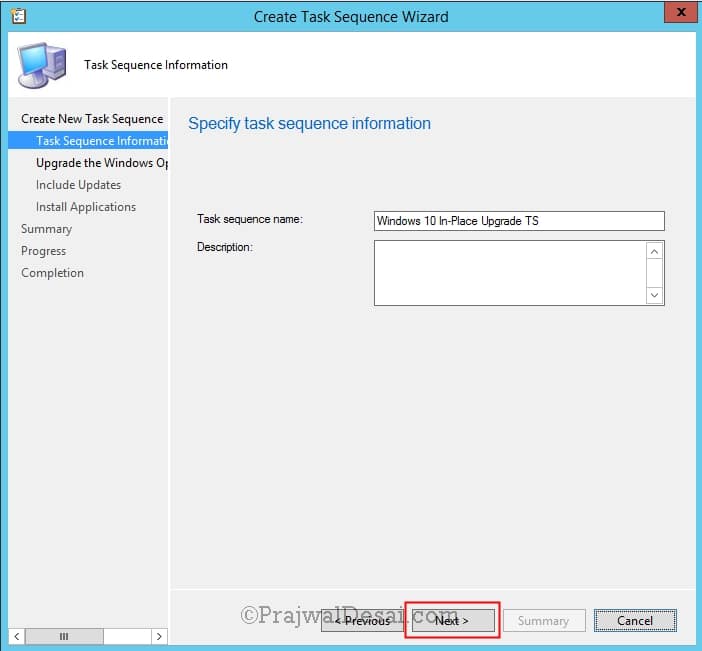
Right click on Task Sequences and click Create Task Sequence. Provide the TS name and description. Click Next.
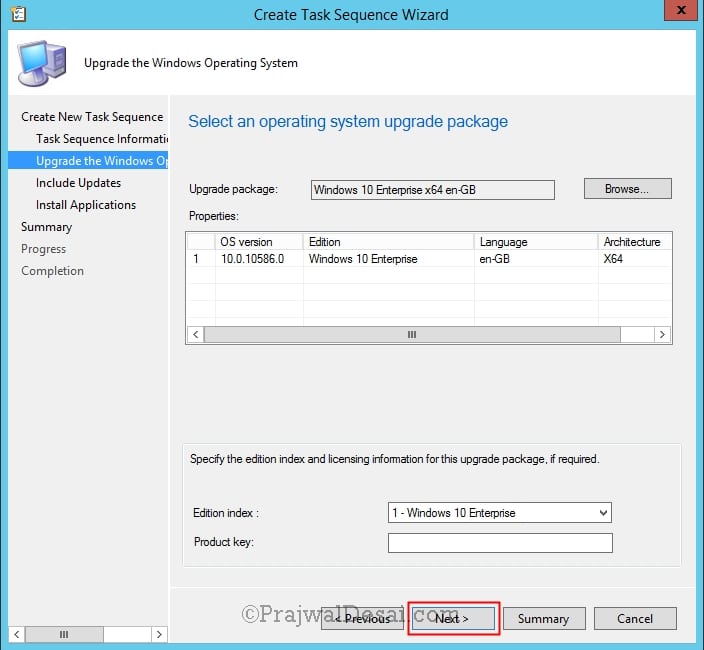
To select the upgrade package, click on Browse and select the Windows 10 enterprise upgrade package. You should find some relevant info about the package under Properties. If you have product key with you, add it in the product key box. Click Next.
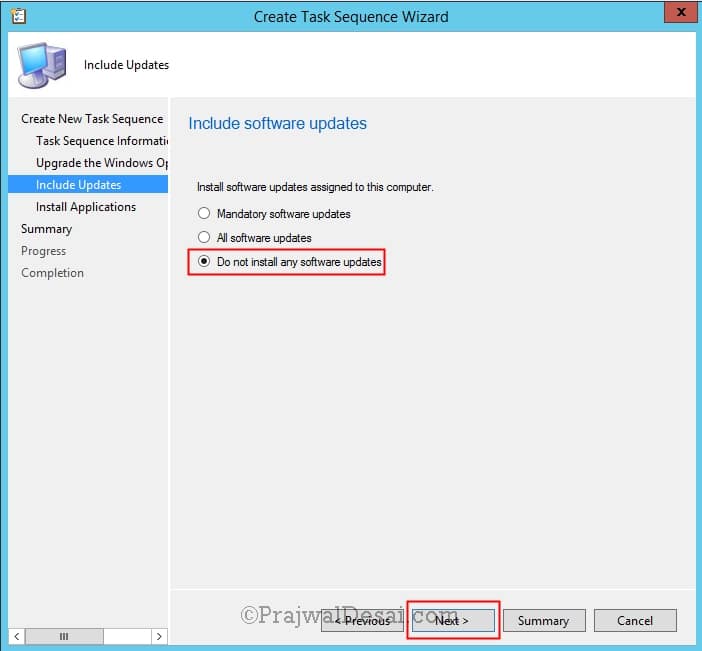
At this moment I chose Do not install any software updates. Click Next.
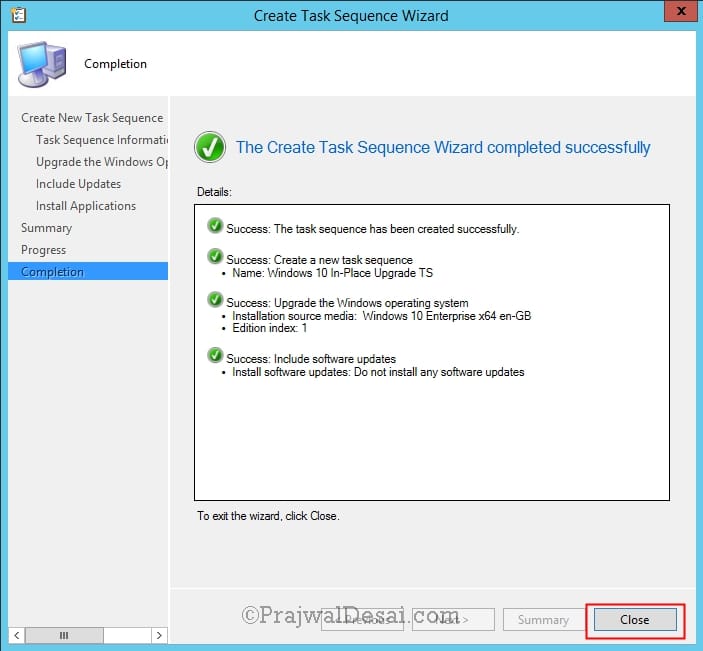
Click Next on rest of the screens and at final step click on Close. With this our TS is ready.
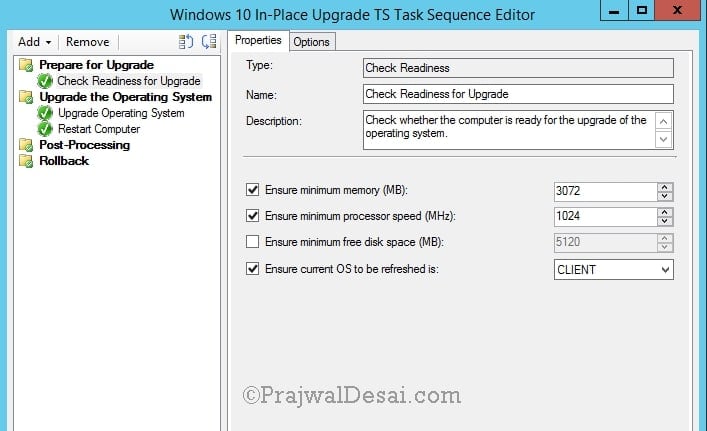
If you right click the TS and click on Edit, you can see the first step is Prepare for Upgrade. Under this you will see Check Readiness for Upgrade step. This will check if the OS is ready for Windows 10 upgrade. The checks are against the min Memory, min processor speed and min disk space. You could modify the options in case you want to.
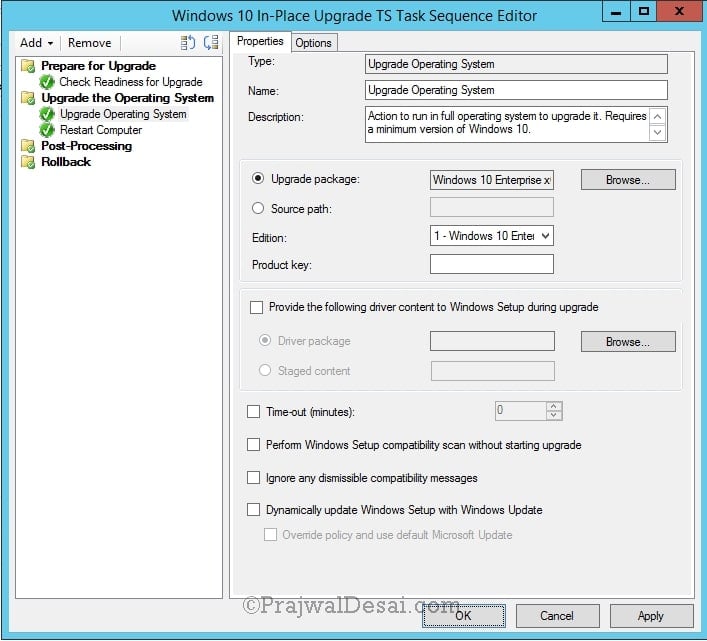
Some more settings for Upgrade OS step in TS. If you have made any changes here click Apply and OK.
Before you deploy the TS, create a collection of computers for which you want to deploy the TS. To deploy it to a collection, click on Browse and choose the collection where you want to deploy the TS.
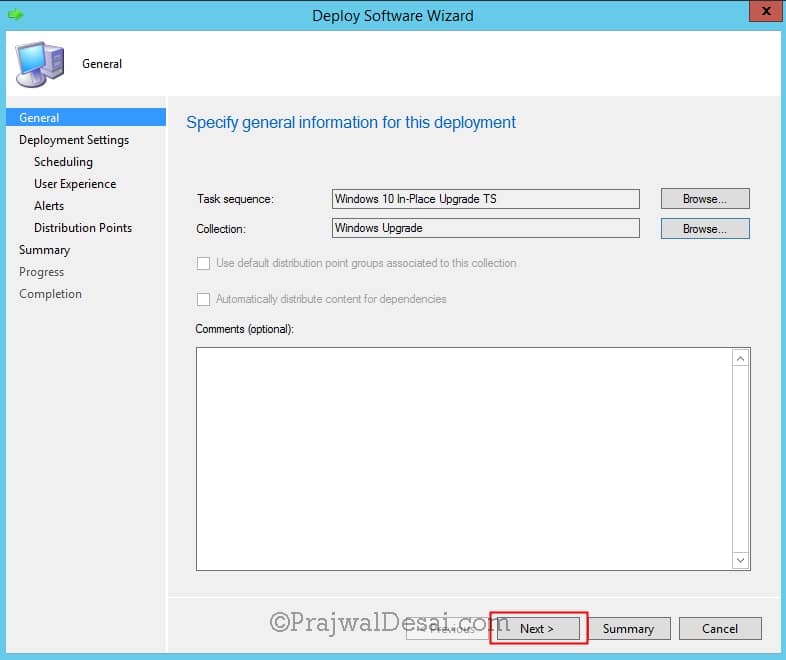
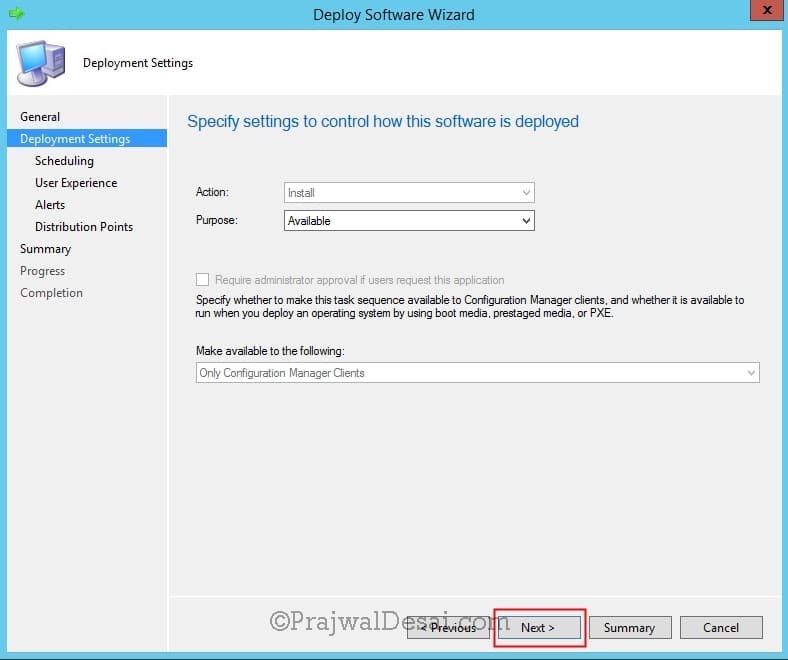
Deploy the TS with Purpose as Available. Click Next.
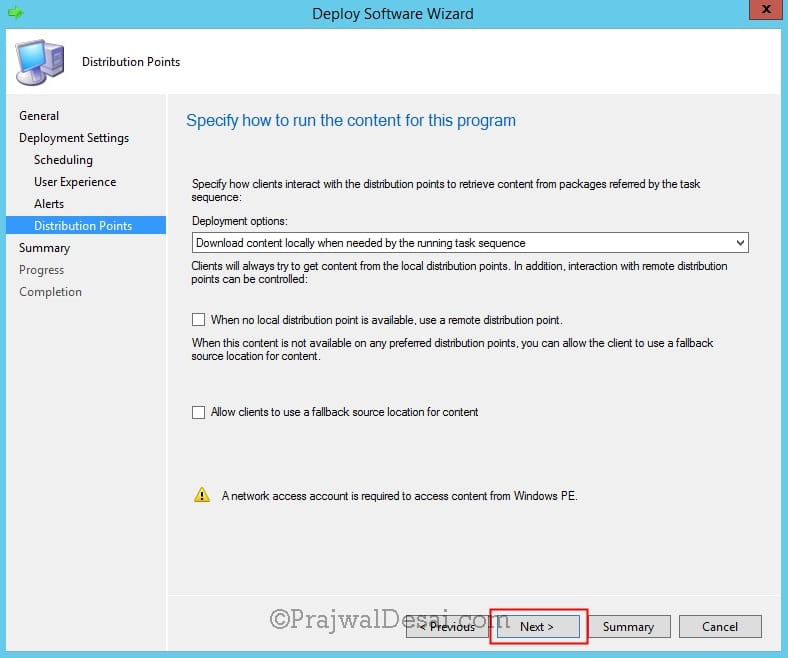
Choose Download content locally when needed by the running task sequence. Click Next and complete the remaining steps.
On the client computer, launch the software center. Click on the Windows 10 In-Place upgrade TS.

Click on Install.

Click on Install Operating System.

The upgrade operating system step is being executed.

To take at look what’s running in the background, use the Configuration Manager Trace log tool to open the smsts.log file located under C:>Windows>CCM>Logs>SMSTSLog folder.

The computer automatically restarts and the upgrade process begins.
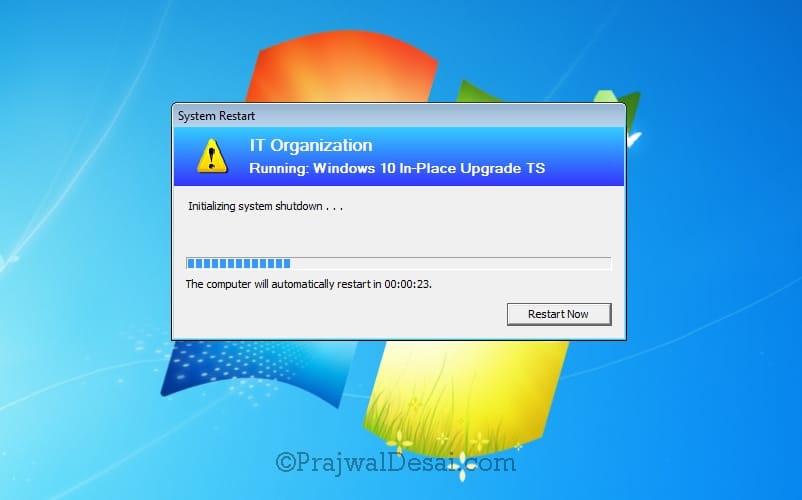
Your PC will reboot multiple times. So just sit back and relax or grab a cup of coffee. The percentage indicator inside that circle is a nice feature.

Almost 86% upgrade is complete. In my case the upgrade process took around 30 minutes to complete.

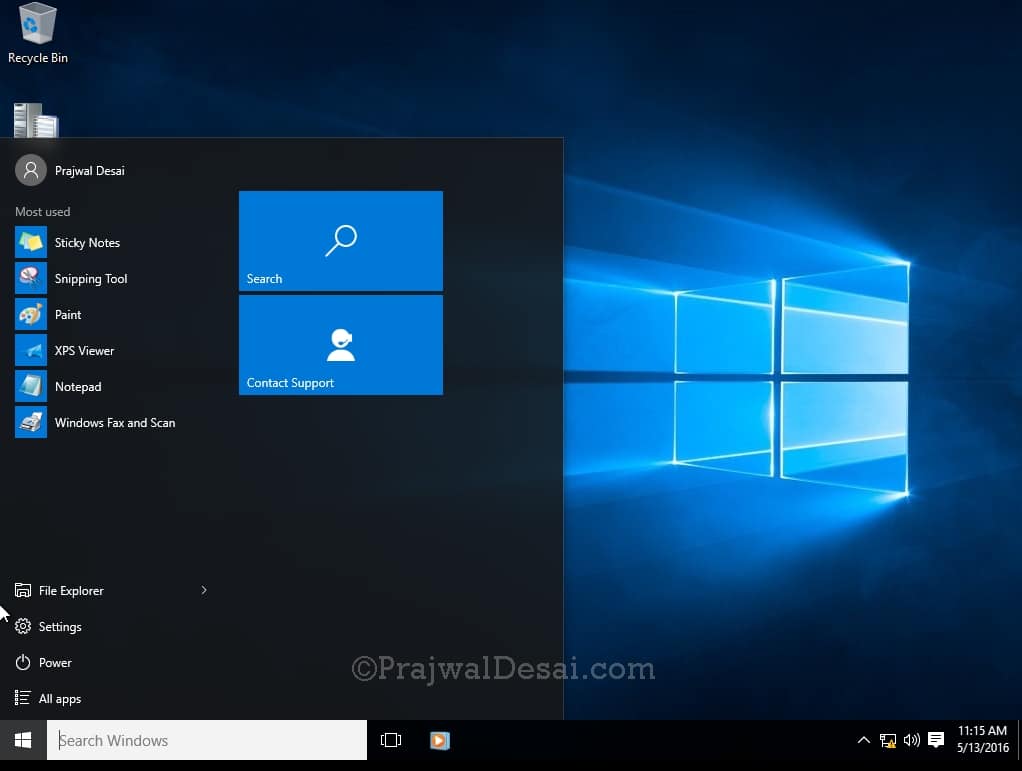
Your device has been successfully upgraded from Windows 7 to Windows 10 by using the In-Place Upgrade method.
/image%2F0881799%2F20140610%2Fob_a8c7fe_logo2.jpg)
Commenter cet article