

/image%2F0881799%2F20150718%2Fob_bae49d_980x285-ct.jpg)
[SCCM] Step-by-Step SCCM 1511 Configuration Installation Guide
Primary Site server prerequisites
Once your hardware is carefully planned, we can now prepare our environment and server before SCCM Installation.
Active directory schema extension
You need to extend the Active Directory Schema only if you didn’t have a previous installation of SCCM in your domain. If you have SCCM 2007 already installed and planing a migration, skip this step.
- Logon to a server with an account that is a member of Schema Admins security group
- From SCCM ISO run .\SMSSETUP\BIN\X64\extadsch.exe

- Check schema extension result, open Extadsch.log located in the root of the system drive

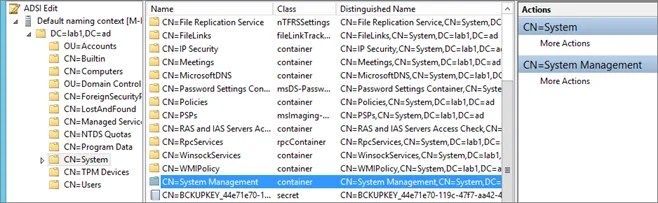
Create the System Management Container
Configuration Manager does not automatically create the System Management container in Active Directory Domain Services when the schema is extended. The container must be created one time for each domain that includes a Configuration Manager primary site server or secondary site server that publishes site information to Active Directory Domain Services
- Start ADSIEdit, go to the System container and create a new Object

- Select Container

- Enter System Management

Set security permission
- Open properties of the container System Management created previously
- In the Security tab, add the site server computer account and Grant the Full Control permissions

- Click Advanced, select the site server’s computer account, and then click Edit
- In the Applies to list, select This object and all descendant objects
- Click OK and close the ADSIEdit console
SCCM Accounts
Create the necessary accounts and group created before installation. You can use different name but i’ll refer to these names throughout the guide.
- SQL server services account – SCCM-SQLService
- SCCM Network Access Account – SCCM-NAA
- Domain user account for use SCCM client push install – SCCM-ClientPush
- Domain user account for use with reporting services User – SCCM-SQLReporting
- Domain account used to join machine to the domain during OSD – SCCM-DomainJoin
- Domain group containing all SCCM Admins Group – SCCM-Admins
- Domain group containing all SCCM servers in the hierarchy Group – SCCM-SiteServers
Network Configuration
- Make sure that the server has a fix IP and that internet connection is up
Firewall Configuration
- Make sure the firewall service is ON
Run this script in an elevated command prompt order to open the necessary ports needed for SCCM.
** If you are using custom ports, change the values before running the script. **
No_sms_on_drive.sms
Place a file name no_sms_on_drive.sms on the root drive of each drive you don’t want SCCM to put content on.
Windows Server Features
On the Primary site server, the following components must be installed before SCCM installation. We’ll install all these components using a PowerShell script.
- .Net Framework 3.51 SP1
- .Net Framework 4
- IIS
- Remote Differential Compression
- BITS Server Extension
- WSUS 3.0 SP2
- Report Viewer
- ADK for Windows 8.1
Roles and features
On the Site Sever computer, open a PowerShell command prompt as an administrator and type the following commands. This will install the required features without having to use the Windows 2012 GUI.
Ensure that all component are showing as SUCCESS as an EXIT Code. It’s normal to have Windows Update warnings at this point.

Report Viewer
Download and install – here
ADK for Windows 8.1
Download and install – here
- Select the default path

- Do not join CEIP

- Accept the License Agreement

- Install the following components
- Deployment Tools
- Windows Pre-installation Environment
- User state Migration tool

Active Directory
- Add the computer account of all your site servers in the SCCM-SiteServers AD group
- Ensure that the group has Full Control on the SYSTEM Container in Active Directory
Local Admin accounts
Add both SCCM computer account and the SCCM Admin account to the local administrator group on the site server.
- SCCM-Admins
- SCCM-SiteServers
SCCM 2007 Client
If applicable, uninstall SCCM 2007 client and FEP if present on the server before the installation. If the client is present, the 2012 SCCM Management Point installation will fail.
Windows Updates
Run windows update and patch your server to the highest level
/image%2F0881799%2F20140610%2Fob_a8c7fe_logo2.jpg)
Commenter cet article