

/image%2F0881799%2F20150718%2Fob_bae49d_980x285-ct.jpg)
[SCCM] [INTUNE] How to enroll an Android Device in SCCM
Enable Android enrollment
Perform the following actions to enable SCCM for Android enrollment
- Open the SCCM 2012 console
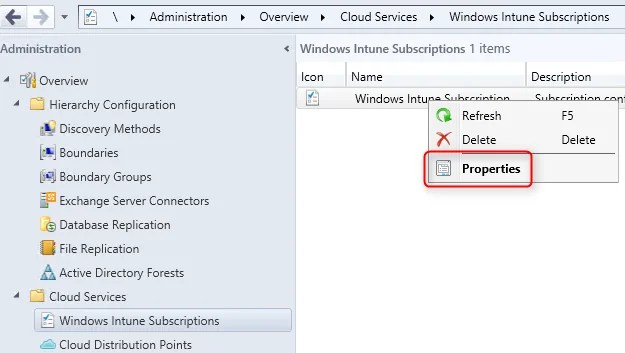
- Go to Administration / Overview / Cloud Services / Windows Intune Subscriptions
- Right click Windows Intune Subscription
- Select Properties
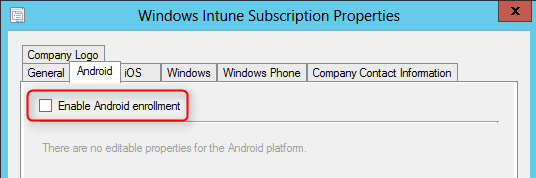
- Select the Android tab
- Put a check beside Enable Android enrollment, click Apply then OK
Enroll the device using the Microsoft Intune Company Portal App
In order to enroll an Android device, you must install the Microsoft Intune Company Portal App. It can be installed on any Android device having Android 4 and later. (Phone and tablets)
The Microsoft Intune Company Portal app will allows to perform the following actions :
- Erase all data (when executing a Remote Device Wipe)
- Change the screen-unlock password
- Set password rules
- Monitor screen-unlock attempts
- Lock the screen
- Set lock-screen password expiration
- Set storage encryption
- Disable cameras
- Disable features in keyguard
To download the App :
- Open Google Play on your device and search for Microsoft Intune Company Portal. (Direct link)
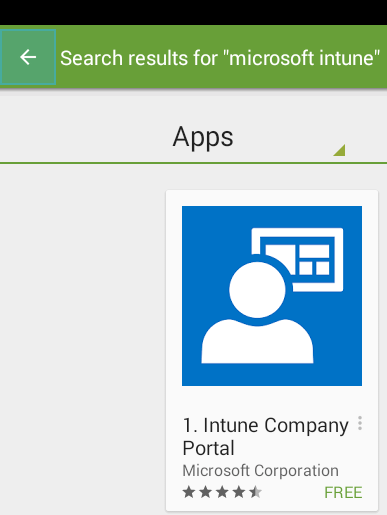
- Select Install

- Once installed, open the application. You’ll be automatically asked to enroll your device. Select Next at the bottom

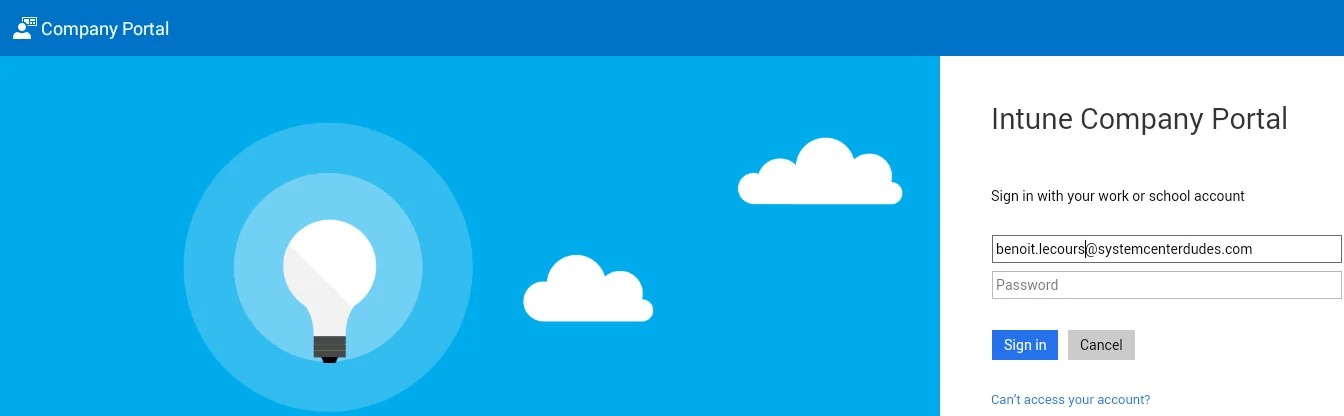
- Enter your Intune account and password
- You’ll get a warning on the action that an Administrator can perform on your device after activation, select Activate

- The enrollment process completes and enter the Company Portal

Verification
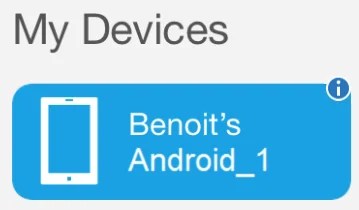
In the Company Portal, look in the My Device section. You’ll see your device listed. If there’s a problem with enrollment, you’ll have a I sign beside your device name
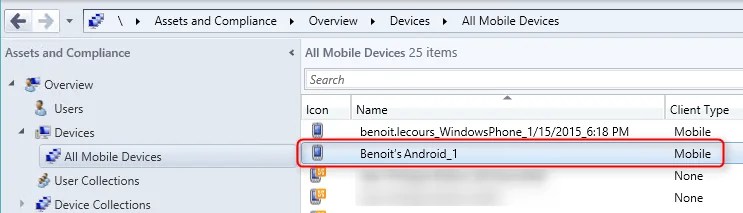
In SCCM :
- Open the SCCM Console and browse to Assets and Compliance / Device Collections
- Open the All Mobile Devices collection and verify that your device is listed
Troubleshooting
If the enrollment process fails, you’ll get a prompt and you can select to send the diagnostic information by email.
/image%2F0881799%2F20140610%2Fob_a8c7fe_logo2.jpg)
Commenter cet article