

/image%2F0881799%2F20150718%2Fob_bae49d_980x285-ct.jpg)
[SCCM] [INTUNE] Configuring SCCM 2012 Intune Integration
Create SCCM Collection
We need to create a new collection that contains users that will be allowed to enroll mobile devices. The collection will be used when creating the Windows Intune subscription (next step).
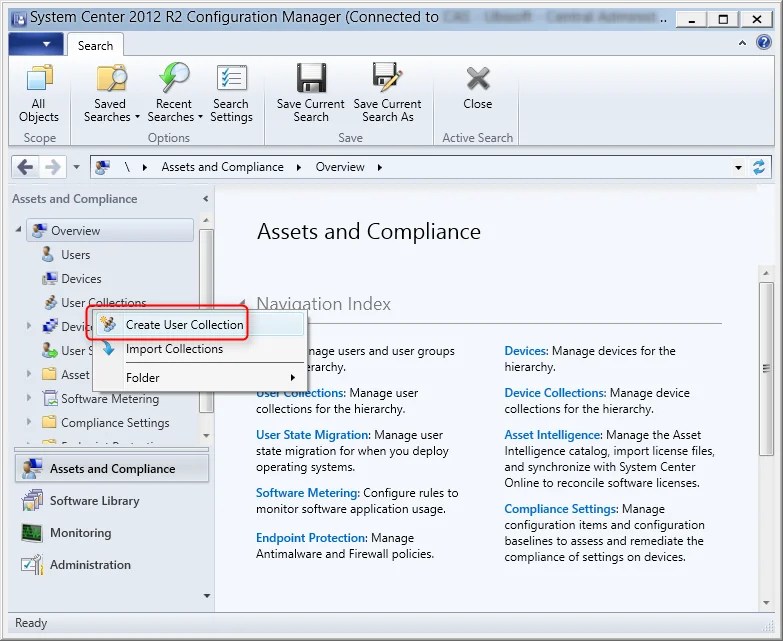
- Go to Assets and Compliance / Overview / User Collections
- Right-Click User Collection and select Create User Collection
- In the General tab, enter the Name and the Limiting collection

- In the Membership Rule tab
- Select your collection members (this will be users that will be allowed to enroll mobile devices)
- Click Next

- Complete the Create Collection wizard
Create the Windows Intune subscription
In this step, the Intune subscription will be created in Configuration Manager.
- Go to Administration / Overview / Hierarchy
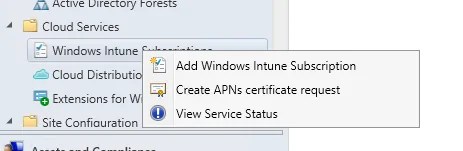
- Right click Windows Intune Subscriptions and select Add Windows Intune Subscription
- In the Introduction tab, click Next

- On the Subscription tab, click Sign-In

Provide your Intune credentials. If you don’t have an Intune account, go back to Part 2.

Once you set Configuration Manager as the mobile device management authority, it cannot be undone. Once you’re fine with this, proceed to next step.
- Select Allow the Configuration Manager console to manage this subscription
- Click Next

- On the General tab
- Click the Browse button next to Collection
- Choose the collection your created in the previous step
- Enter your Company name, URL for support and Color scheme
- Select the Site Code that will be managing mobile devices. If you have more than 1 Primary Site, choose the one that has the better connectivity to serve mobile devices.
- Click Next

- On the Platform tab, do not select any platform for now. We will configure that in the next post.
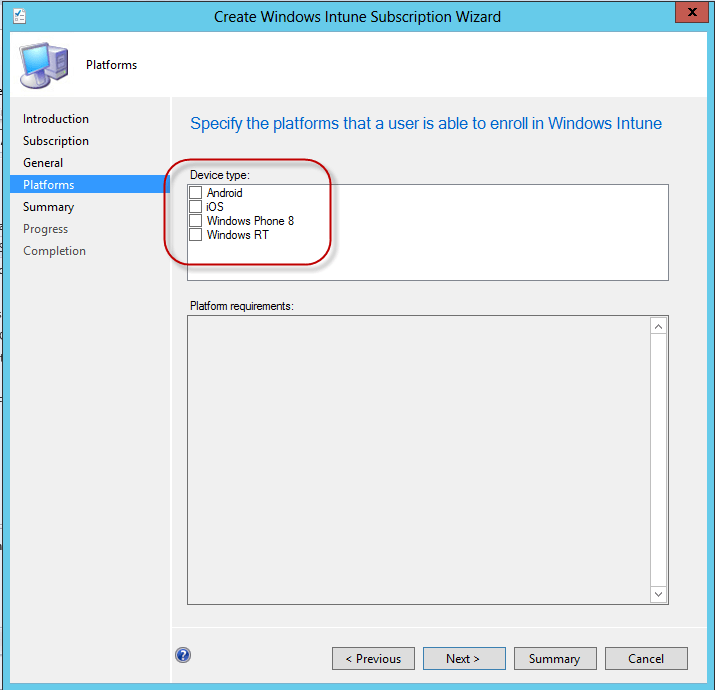
- On the Summary tab, review the Summary and click Next
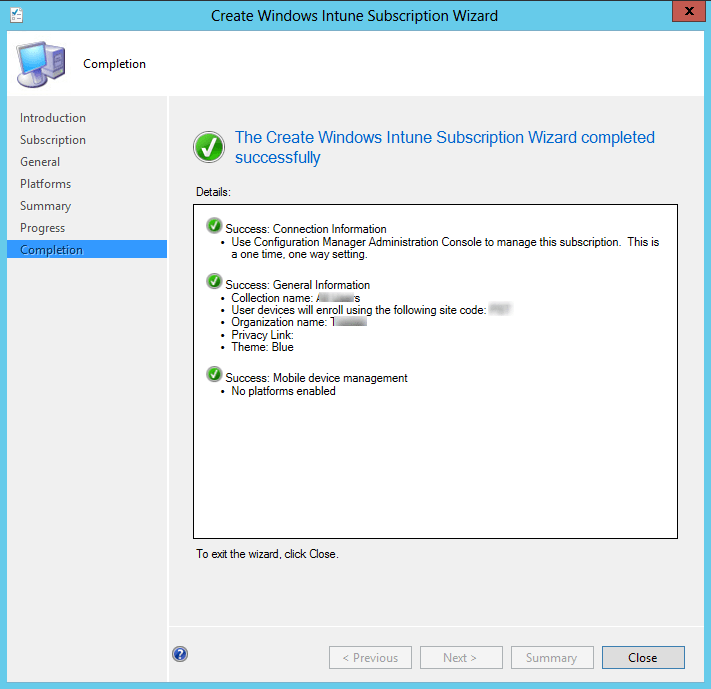
- On the Completition tab, click Close
- Go to Administration / Overview / Site Configuration / Servers and Site System Roles
- You’ll notice that you have a new site server acting as a distribution point : Manage.microsoft.com

Create the Windows Intune Connector Site System Role
The last step for this part is to add the Windows Intune Connector Site System Role in the Configuration Manager console
- Go to Administration / Site Configuration / Servers and Site System Roles
- Right click the Site System you wish to add the role
- Click Add Site System Role in the Ribbon

- On the General tab, click Next

- On the Proxy tab, click Next

- On the Site System Role tab
- Select Windows Intune Connector
- Click Next

- On the Summary Screen
- Review your configuration
- Wait for the wizard to finish
- Click Close
You can review Sitecomp.log on the site server in which you’ll find information about role installation.
Configuration Manager is now configured to manage your mobile device through Intune !
Rev
Review
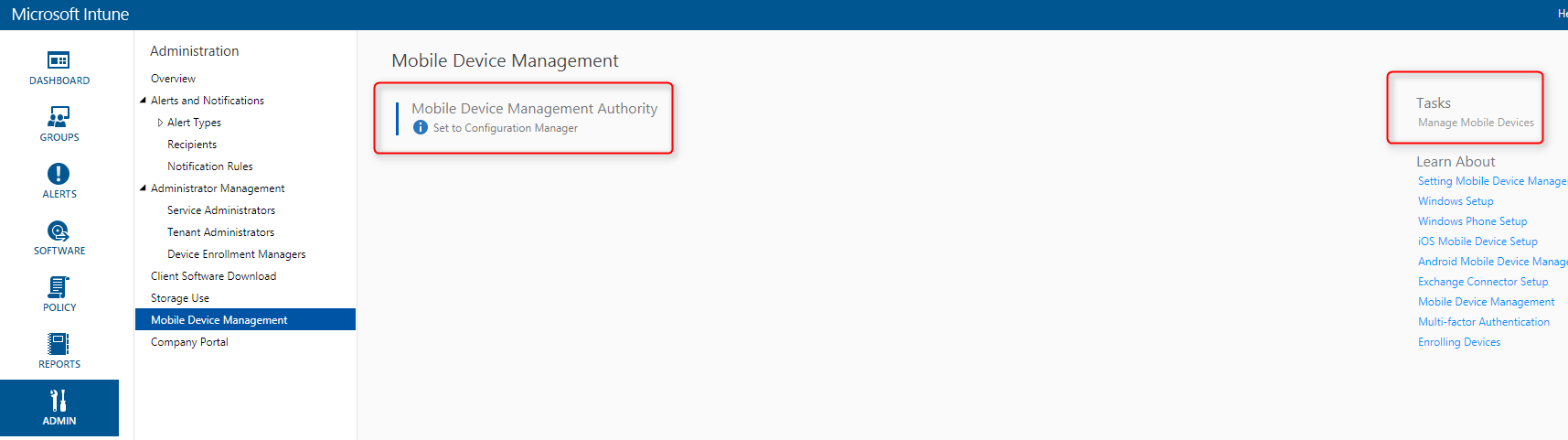
In this step we will describe how to verify that everything is setup correctly.
- Open the Windows Intune Technical Console
- Go to Admin / Administration Management / Mobile Device Management
- Verify that :
- Mobile device management authority is Set to Configuration Manager
- Task to Manage Mobile Devices is grayed out (on the right side)
Logs
Click the following link to have a full list of logs file related to mobile devices.
Review Cloudusersync.log which contains information about synchronization of the users allowed to enroll their mobile devices. The log file is on the server having the Windows Intune connector role.
That’s it, you’ve completed the third step to manage mobile device with SCCM 2012.
/image%2F0881799%2F20140610%2Fob_a8c7fe_logo2.jpg)
Commenter cet article