

/image%2F0881799%2F20150718%2Fob_bae49d_980x285-ct.jpg)
[INTUNE] Configuring Active Directory and Create Users for Intune
Active Directory Preparation
In order to prepare your Active Directory, you need to create an alternate UPN suffix to match the domain you added in Intune. See part 1 if that’s not completed.
An UPN suffix is the name of the domain that is added after the @ sign when a domain user account is created. The alternate UPN suffixes will simplify administration and user logon processes by providing a single UPN suffix for all users.
This is the domain that Configuration Manager and Intune would expect users to use when enrolling devices.
- Open Active Directory Domains and Trusts

- Right-click Active Directory Domains and Trusts
- Click Properties

- On the UPN Suffixes tab
- Type the new UPN suffix that you would like to add to the forest
- Click Add
- Click Ok

The next step is to change the UPN of all your users :
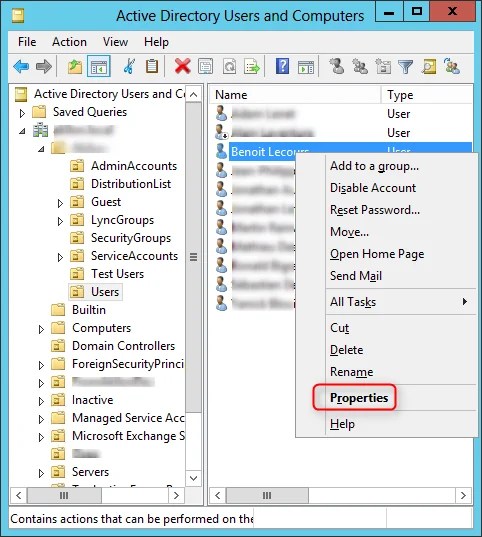
- Open Active Directory Users and Computers
- Browse to the OU where your users reside
- Right click your user and select Properties
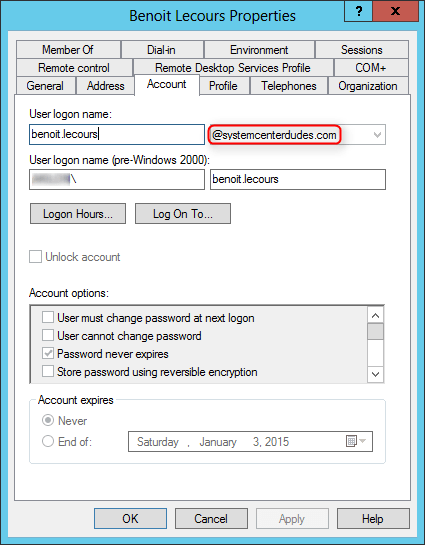
- In the Account Tab
- Change the suffix value
Tip : You can also use this PowerShell command to change multiple accounts. Just change the -SearchName and $_.samaccountname value to reflect your environment.
Intune Users Creation
Your Active Directory Users needs to be synchronized with Intune. You can use Microsoft Azure Active Directory Sync (DirSync) or create your users manually if you have a small amount. For the sake of this post we’ll create them manually.
- Log in your Intune Account console
- In the left pane, click Users
- Click New, User

- Enter your user information, make sure to select the right domain
- Click Next

- Decide if you want to assign administrative access to your user. Learn more about administrator roles
- Set the user location. This is used for licencing reason, it won’t prevent your user to travel
- Decide if you want this user to have administrator permissions to companies you support. Learn more about administrator roles
- Click Next

- Select the default Windows Intune group. This group won’t be used since access will be managed through an SCCM User Collection that we’ll configure later.

- Choose if you wish to receive the user credentials by email
- Click Create
- Wait for the process to complete
- Click Finish
- Repeat the steps if you have more users to create

That’s it, you’ve completed the second step to manage mobile device with SCCM 2012.
/image%2F0881799%2F20140610%2Fob_a8c7fe_logo2.jpg)
Commenter cet article